Use Claude Code remotely from your phone or the web
Some of the best runs I kick off are the ones I do not want to sit and watch. A long refactor, a test suite churning, an agent working through a checklist. I want to start it at my desk, walk away, and still keep an eye on it (and approve the occasional prompt) from wherever I end up.
That is exactly what Claude Code's remote control is for. You leave the session running on your machine, and you steer it from your phone, from a browser, or from the CLI on another computer. Here is how I set it up and use it day to day.
What remote control actually does
Remote control connects a local Claude Code session to your Claude account so you can reach it from somewhere else. The work still happens on your machine, in your repo, with your files. Nothing gets uploaded to run in the cloud. You are just getting a remote window onto a session that is already running at home.
Once a session is connected, you can pick it up from:
- The Claude mobile app (iOS and Android): tap Code to see your live sessions.
- claude.ai/code in any browser.
- The CLI on another device, by resuming the same session.
The connection runs out through the Claude API over HTTPS. It does not open any inbound ports on your machine, so you are not exposing your laptop to the internet to make this work.
Turn it on for one session
If you already have Claude Code open, just run the slash command:
/remote-control
/rc is the short alias, if you are like me and alias everything. That registers the current session so it shows up on your other devices.
You can also start a session with remote control already on, straight from the shell:
claude --remote-control
# or the short form
claude --rc
That is the whole thing for a one-off. Start the session, flip remote control on, and walk away.
Pick it up from your phone or the web
Open the Claude app on your phone and tap Code, or go to claude.ai/code in a browser. Your connected session is right there, showing a little computer icon with a green dot while it is online. Tap in and you can read what it is doing, send it a new instruction, or answer a question it is stuck on, exactly as if you were at the keyboard.
If your laptop briefly sleeps or the network hiccups, the session reconnects on its own when it comes back, so a short outage does not kill the link.
Approve prompts from your wrist
This is the part that turned it from "neat" into something I use every day. When the agent hits a permission prompt (it wants to run a command, or edit outside the repo), I get a push notification on my phone. And because those notifications land on my Apple Watch too, I can glance at my wrist and approve it right there without even taking my phone out.
Tip: you can also ask Claude to ping you. Something like "notify me when the tests pass" gives you a push when it is done, so you are not checking back every few minutes.
So a typical away-from-desk loop looks like: start the run, walk off, feel a tap on my wrist, read the one-line request, approve, done. The run never stalls waiting for me to get back to the desk.
Make it the default for every session
Turning it on per session gets old fast. Once I decided I always want it, I set it as the default so every new session connects automatically.
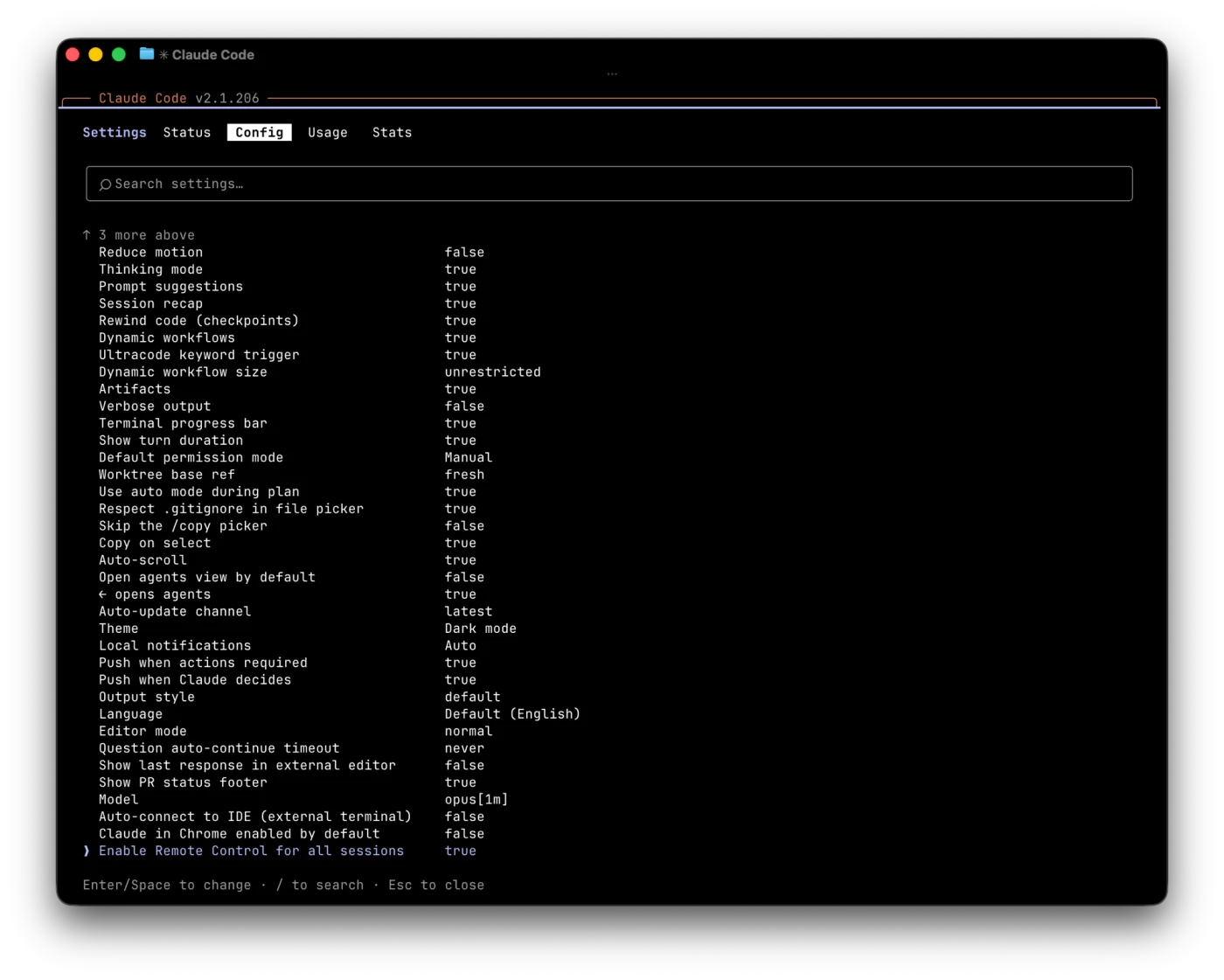
In the CLI, run /config, open the Config tab, and set Enable Remote Control for all sessions to true. It is near the bottom of the list, or type / to search for it.
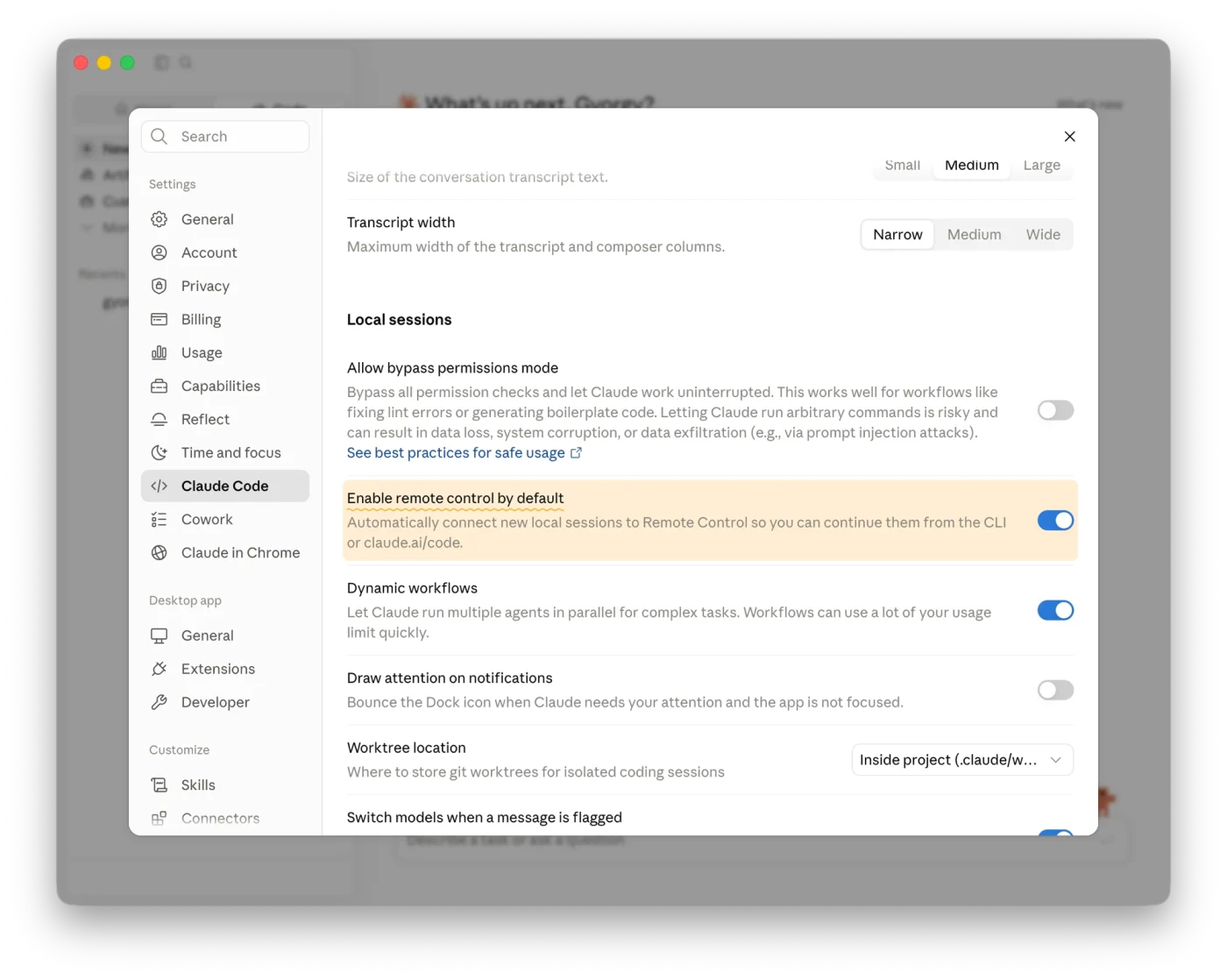
In the Claude desktop app, open Settings, go to Claude Code, and under Local sessions flip on Enable remote control by default. Same effect: every new local session connects to remote control so you can continue it from the CLI or claude.ai/code.
From then on you do not think about it. Start a session, and it is already reachable from anywhere.
What you need
A couple of requirements worth knowing before you go looking for the setting and cannot find it:
- A Claude subscription: Pro, Max, Team, or Enterprise. Remote control is tied to your claude.ai account, so an API key on its own will not do it.
- Signed in with
/loginusing that claude.ai account (notANTHROPIC_API_KEY). - A recent Claude Code: the screenshots above are from
v2.1.206. If you are on an old build, update first (claude updateor your usual install path), then the setting will be there.
Turning it off
Opting out is just as quick as turning it on.
- For one session: run
/remote-controlagain to disconnect it, or just close the terminal. - For good: set Enable Remote Control for all sessions back to
falsein/config, or turn off Enable remote control by default in the desktop app.
You are always in control of which sessions are reachable, and you can flip it off any time.
Going further
Remote control reaches one session, and that session ends when you close it. What it will not do is keep an agent alive on that machine between visits, remember what it did last week, or run something at 3am while you sleep. That gap is why I built MyAgens: persistent agents on your own hardware, with durable memory and schedules, commanded from Telegram and pausing for your approval before anything risky runs.
More in How-to