Keepresso: keep your Mac awake, even with the lid closed
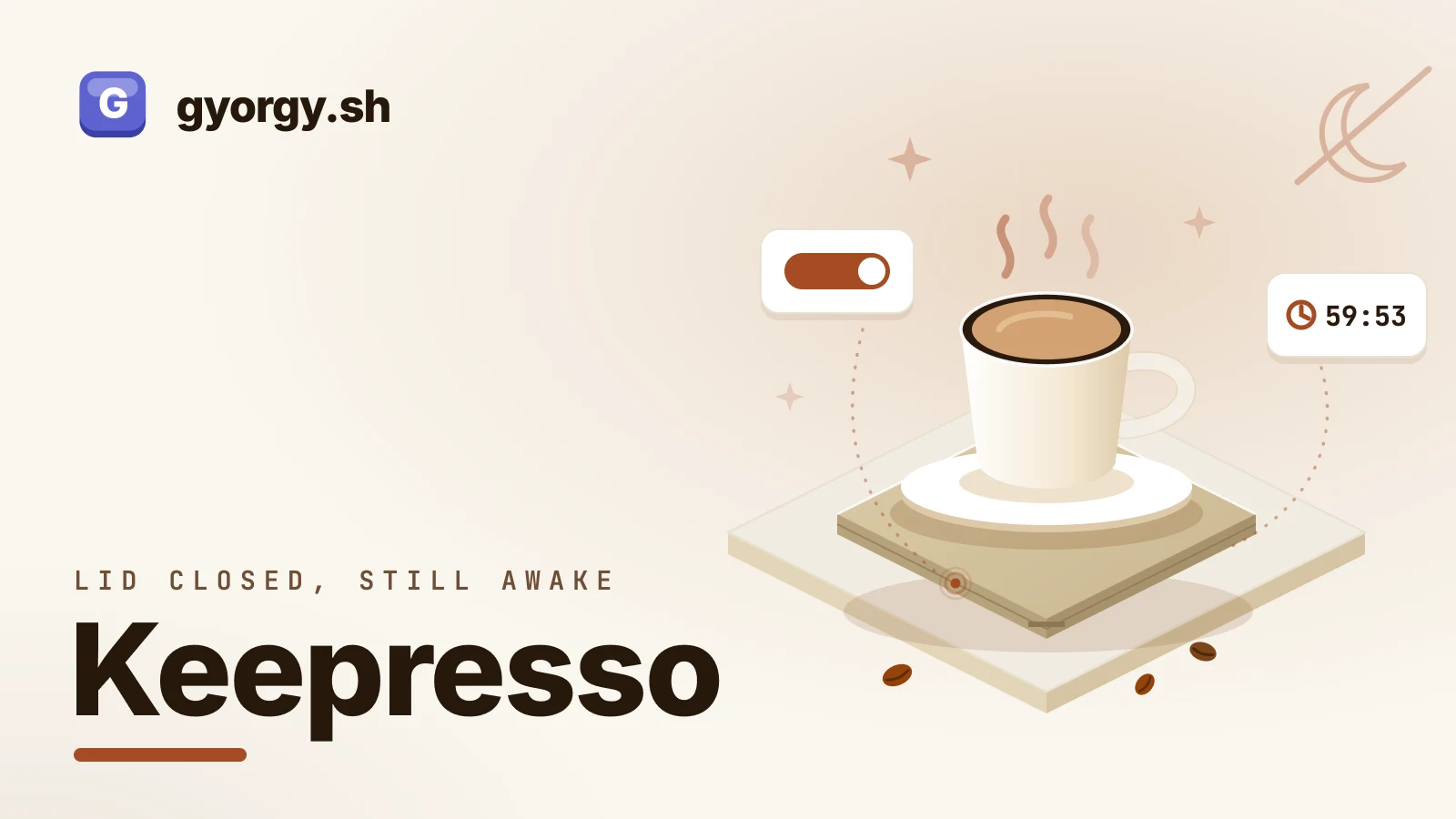
I run a Mac as an always-on machine: AI agents working through the night, long jobs that cannot stop halfway, a couple of services I want reachable when I am away from the desk. The problem is that macOS really wants to sleep. Close the lid and it is gone. Walk away and the display sleeps, the system follows, and whatever was running stops with it.
The usual fixes never fit. The built-in caffeinate is a terminal command you start and forget to stop. The mouse-jiggler apps fake input to trick the system, which feels wrong for a machine doing real work. And none of them are smart about it: what I actually want is a Mac that stays awake while my agents are running and sleeps the rest of the time, not one pinned awake forever and quietly cooking on battery. Run it headless with the lid shut and no monitor, the way an always-on Mac usually lives, and you hit a second problem: no display means screen sharing turns into a fuzzy mess.
So I built Keepresso: a native Swift and SwiftUI menu-bar app that keeps your Mac awake using the real macOS power assertion APIs, with smart triggers that decide when to stay up (including one that knows when a coding agent is actually working, not just open), a closed-lid mode for headless setups, and an experimental virtual display so a monitor-less Mac still looks crisp over VNC. Agents and scripts can also hold the Mac awake themselves through bounded leases, a CLI, or a bundled MCP server, so the session ends when the work does even if the tool crashes.
Get it
With Homebrew:
brew install --cask gyorgysh/keepresso/keepresso
Or grab the latest signed, notarized DMG from keepresso.com or the GitHub releases, drag Keepresso to Applications, and launch it. Either way it self-updates through Sparkle after that, so you stay current without checking back.
It needs macOS 14 or later, and it is GPL-3.0 licensed, so the source is all there to read or fork. Screenshots and the full feature list live on keepresso.com.
Keepresso Free and open source, with screenshots and the full feature list at keepresso.com. Get itWhat it does
Keepresso lives in your menu bar and gives you independent control over two things macOS treats separately: keeping the system awake and keeping the display awake. You can hold the whole machine up, or let the screen sleep (or run a screen saver) while the system keeps working underneath.
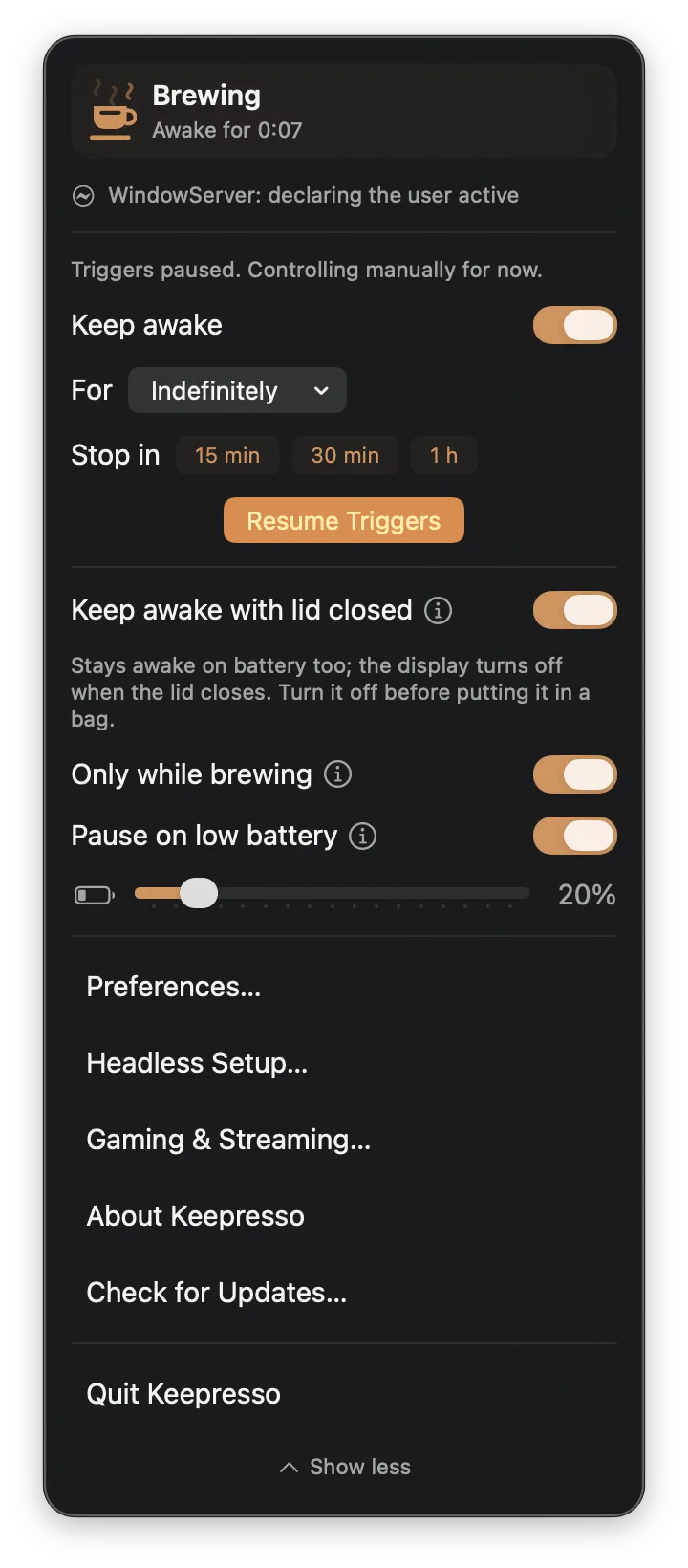
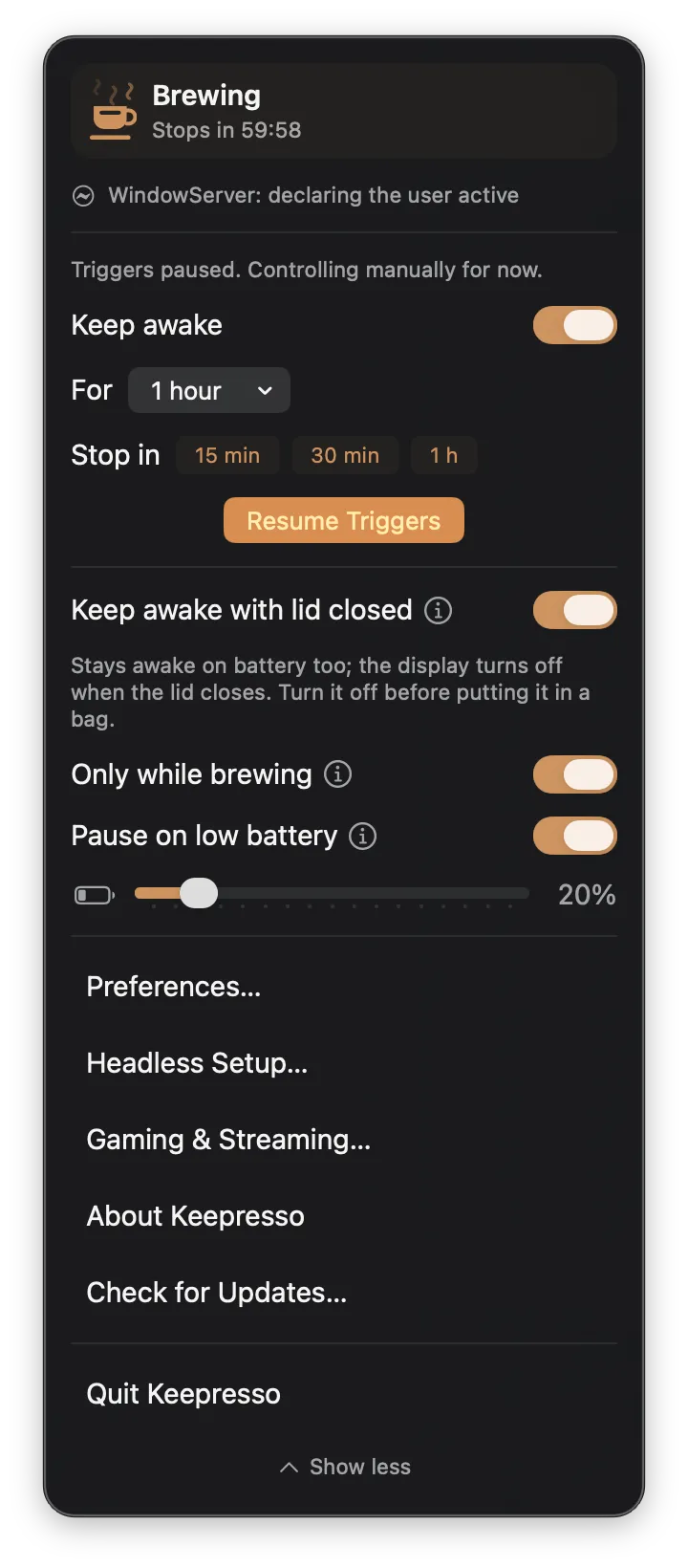
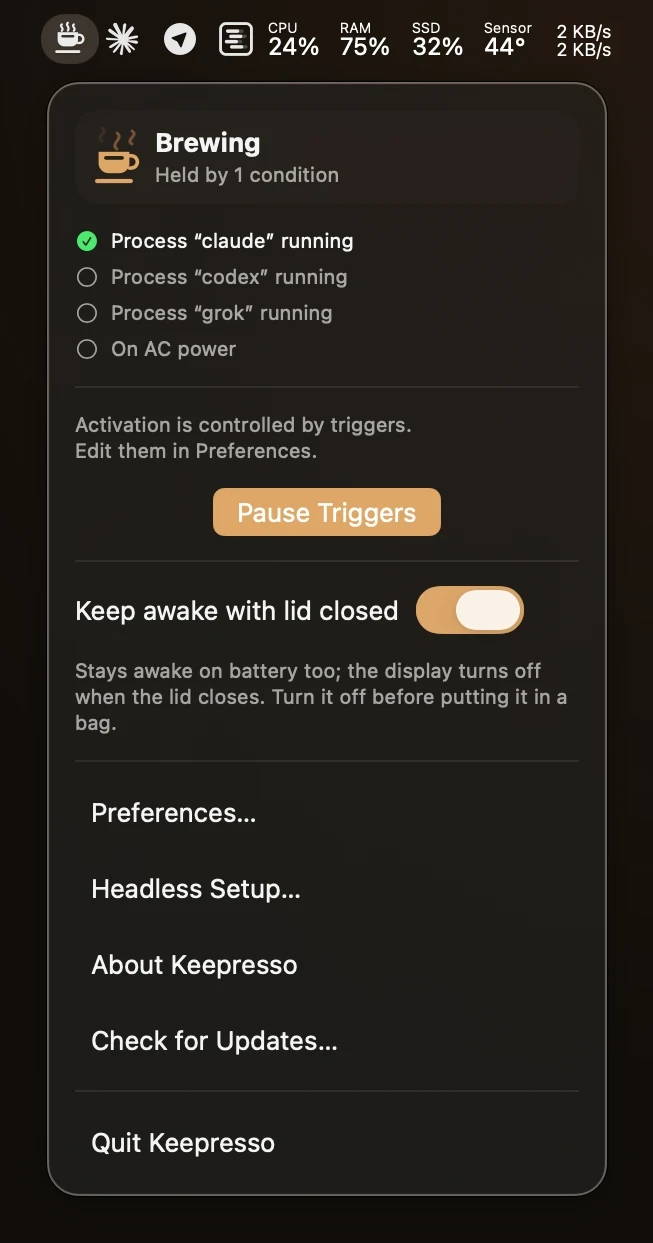
The headline features:
- System and display toggles you can flip on their own, plus a screen-saver or display-sleep yield after N minutes idle, and a dim-when-idle option for overnight runs.
- Timed sessions: presets, any custom duration, or "until a time", with quick "Stop in" buttons to wind a running session down and an optional countdown next to the cup icon.
- Closed-display mode: keep the Mac running with the lid shut, globally or only while a session is brewing.
- One password, ever: a small privileged helper handles every switch that needs admin rights, approved once in System Settings and replaced automatically by app updates.
- A trigger engine: power, Wi-Fi, VPN, external display, meetings, audio, Bluetooth and controllers, schedules and calendar events, CPU load, mounted drives, downloads, games, or a named app or process. Plug into your desk monitor and it wakes up; unplug and it stands down.
- A trigger that knows when your AI agent is actually working, not just sitting open. It is the condition I built the app for, so it gets its own section below.
- Automation leases for agents and scripts: a bounded hold the tool acquires, heartbeats, and releases, so a crash cannot leave the Mac pinned. Live countdowns in the menu, and one action ends them all.
- An MCP server and a bundled agent skill, so any MCP-capable agent can manage leases and read status without touching a shell.
- Gaming and streaming mode: game, controller, and Steam-download triggers, plus an AWDL pause for the Wi-Fi latency spikes. Also its own section.
- Presets: apply a named trigger bundle in one click, from built-ins like Meetings, AI Agent, Gaming, and Remote Session (SSH), or your own saved rule sets.
- Export and import settings to carry a whole configuration to another Mac. Imported shell-command hooks arrive switched off, so a shared file cannot run a command unseen.
- Desktop widgets and Control Center: a live-countdown widget on macOS 14 and up, a Control Center toggle on macOS 26.
- Fifteen languages across the menu, the setup screens, notifications, VoiceOver labels, and the widgets.
- An Activity pane that answers "why is my Mac awake?", with every app's live power assertions and a decision log of what started and stopped each session.
- Reminder notifications after N minutes, one-time or recurring, so an indefinite session does not quietly run forever.
- Disk keep-alive for external drives that spin down on you.
- A headless setup checklist for Macs you run as always-on servers, plus an experimental virtual display option for headless rigs.
- Battery-aware auto-pause: set a charge threshold and a long session stops before it runs the battery flat.
- A thermal safety net that watches thermal pressure or sensors you pick, can boost the fans, and pauses the session if the Mac stays hot with the lid shut.
- Scheduled wake: a one-shot or repeating system wake, optionally starting a session once the Mac is up. It can also wake a few minutes before the recurring runs Claude Desktop or Codex schedule locally.
- Shortcuts actions and a
keepresso://URL scheme to drive a session from Spotlight, Siri, Raycast, Alfred, or a shell script. - Event hooks that run a Shortcut, POST a webhook, or run a shell command when a session, trigger, or agent changes state. Mine pings my phone when an overnight run finishes.
- Pause Triggers, right from the menu: a temporary switch that stops brewing without turning the trigger system off, and always comes back active after a relaunch.
- Keep me active: report real activity to macOS so remote-desktop sessions, Teams, and Slack stop marking you away, without faking input.
- A system-wide keyboard shortcut and start on launch, so an always-on Mac holds itself up from boot.
- Session-end actions: sleep the display, start the screen saver, lock the screen, or sleep the Mac when a session ends on its own.
- A menu that gets out of the way: a native right-click menu, a "Show less" row that hides the toggles, and an Appearance slider for the dropdown's glass.
The agent trigger
This is the condition I built the app for. Keepresso finds coding-agent sessions in your terminals, claude, cursor, codex, antigravity, gemini, grok, aider, goose, pi and friends, and holds the Mac up only while one of them is working.
Judging that is the interesting part. Where an agent streams its transcript to disk, a fresh write is direct proof of work, even through a long network wait at zero CPU. Everywhere else it measures the agent's CPU against that session's own learned idle level, so a TUI that animates while it waits and a near-silent one are both judged fairly. The menu lists every session with a live state and the mark that tool spins, and once they have all been quiet for a grace you pick, the Mac may sleep.
Claude Code, Cursor, Codex, and Antigravity can skip the guesswork. Connect one and each session reports its real state, which also covers the agents built into the Cursor and Antigravity apps, since those run inside the editor with no process of their own to watch. Each chat is tracked separately, because several conversations can share one editor process. A pending permission prompt then counts as working, so an overnight run that stops to ask is still waiting for me in the morning. For agents without a connection, an option does the same for any session sitting at a prompt.
Connecting is deliberately dull, which is the point: Keepresso only adds hooks that report when work starts and stops. They cannot allow, deny, or block anything the agent does, and they stay out of the step where a tool call is approved. Only tools actually installed on the Mac are offered, and the connection is rechecked over time so a hook that goes missing or falls out of date gets repaired rather than quietly failing.
Gaming and streaming
The "playing a game" trigger spots Steam titles and the cloud clients (GeForce NOW, Boosteroid, Parsec, Moonlight, Shadow) with a five-minute grace, so alt-tabbing to Discord does not drop the session. A controller condition counts DualSense, Xbox, and the Steam Controller, which macOS never reports as a gamepad, and a Steam-download condition holds while a game downloads or updates. The built-in Gaming preset bundles all of it, plus sustained traffic above 1 MB/s for launcher patches.
The Gaming & Streaming setup goes after the other half of the problem, the network. It pauses AWDL to cut the Wi-Fi interference that spikes latency, with a picker for how long to wait before resuming so a quick alt-tab does not disturb the radio, runs a jitter test, checks a few radio-hygiene basics, and can raise the active game's CPU priority through the helper so background work cannot steal frames. An opt-in switch reports activity during controller-only play, so the display stops dimming when you never touch the keyboard.
Inside Preferences
The menu bar covers the day-to-day. Everything else lives in Preferences, split across tabs so each concern stays in one place, and every section now carries a small (i) button that explains what the setting actually does, when it does not apply, and what it costs (a password prompt, a permission, battery), so the fine print is there when you want it and out of the way when you do not.
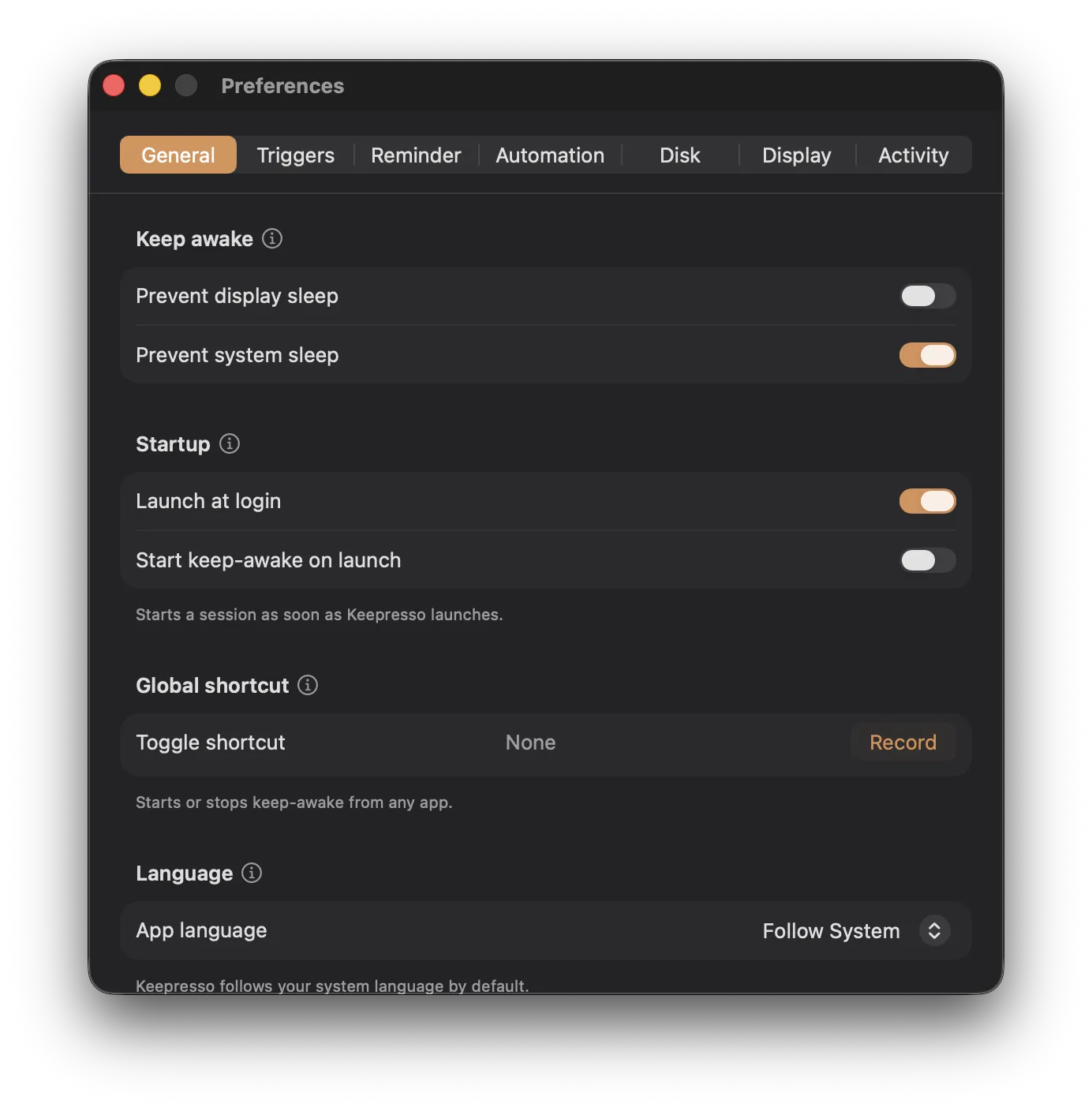
General is where the two sleep toggles and closed-display mode live, plus launch at login; the menu-bar countdown is set here too, while the low-battery auto-pause moved right into the menu, a switch with an inline slider next to the session it protects. Keep me active is here as well, the toggle that reports activity to macOS so remote-desktop sessions, Teams, and Slack stop marking me away, and so are a global keyboard shortcut to toggle keep-awake from any app and a start-on-launch option that begins a session the moment the app opens. An Appearance slider here sets how see-through the menu dropdown's glass is.
The closed-display note is honest about the trade: it flips a system setting with pmset disablesleep, and on battery with the lid shut it can drain and trap heat, so do not leave it on in a bag. That flip needs admin rights, so a small privileged helper handles it: approve the helper once in System Settings and you never see a password prompt for it again. An "only while brewing" option ties the lid-closed override to the session, switching it on when a keep-awake session starts and off when it ends, rather than leaving it on globally. Closed-display mode now also puts the display itself to sleep the moment the lid actually closes (unless an external display is attached), instead of leaving the internal panel lit inside a closed lid; it wakes normally the instant you open it back up. Releasing a sleep hold restores your exact prior pmset disablesleep value rather than always zeroing it.
General also holds the Thermal section, the safety net for exactly that lid-shut state: watch macOS thermal pressure or sensors you pick, optionally boost the fans through the helper when sustained heat builds, and pause the session, lifting the sleep override, if the Mac stays hot, with everything restoring itself once temperatures recover and a Test Fans check to prove the path in advance.
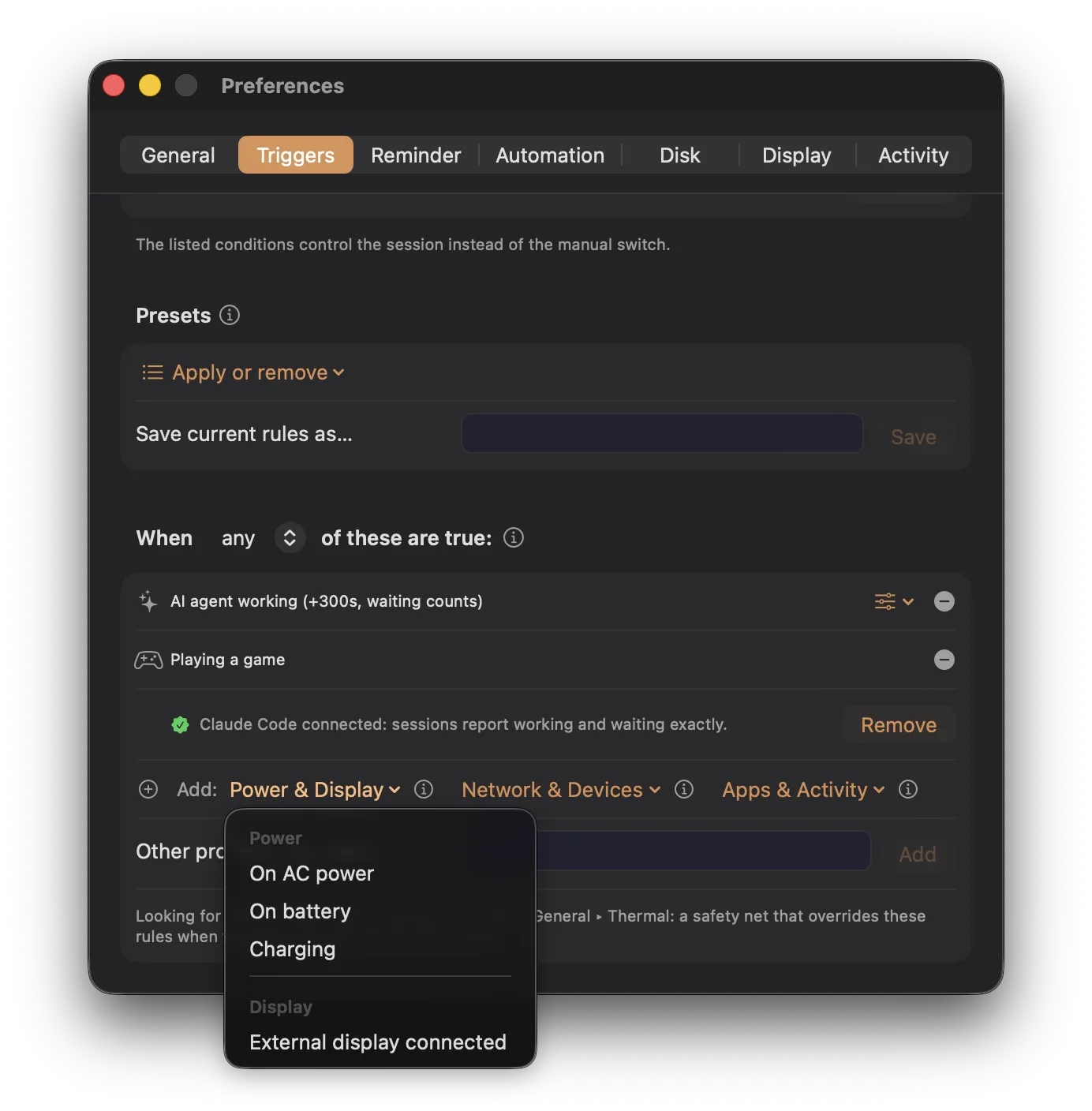
Triggers is the part I use most. Turn on "Activate by triggers" and a list of conditions runs the session instead of the manual switch, matched on any or all. Conditions cover power (on AC, on battery, charging), a connected external display, a specific Wi-Fi network, a connected VPN, a paired Bluetooth device or game controller, the camera or mic being in use, audio playing, a daily schedule or a calendar event, CPU load above a threshold, a mounted volume, an active download, a Steam download, a busy network, a game being played, whether a named app or process is running, and an AI coding agent actually working, all grouped into sections in the add-condition menu so the list stays readable. Mine runs on the agent condition with the Claude Code and Cursor connections turned on: the Mac stays awake while a session is genuinely working, waits through a pending permission prompt, and goes back to sleeping on its own once everything is idle. Save a rule set as a preset and it is a one-click apply from then on; a few built-ins ship in the box, Meetings, AI Agent, Gaming, Remote Session (SSH), Backup Running, and Cloud Gaming among them.
Automation is the newest tab, and it collects everything Keepresso does around a session rather than during it. Event hooks run a Shortcut, POST a webhook, or run a shell command when something happens: a session starts or ends, a trigger fires or releases, a battery or thermal pause hits, an AI agent goes idle. Automation leases let scripts and AI agents hold the Mac awake with a time limit they must keep renewing, and the same tab is where you enable or disable that path, install the bundled agent skill, and copy MCP setup snippets for Claude Code, Gemini CLI, Grok, and Codex. Scheduled wake installs a one-shot or repeating system wake through the helper, then starts a session, or leaves the triggers in charge, once the Mac is actually up; changing the schedule from automation stays behind its own opt-in switch. A separate Scheduled AI runs switch here syncs the recurring tasks Claude Desktop or Codex schedule locally and wakes the Mac just ahead of each, one tool at a time as you opt them in. And the end-of-session action lives here: sleep the display, start the screen saver, lock the screen, or sleep the Mac when a session ends on its own.
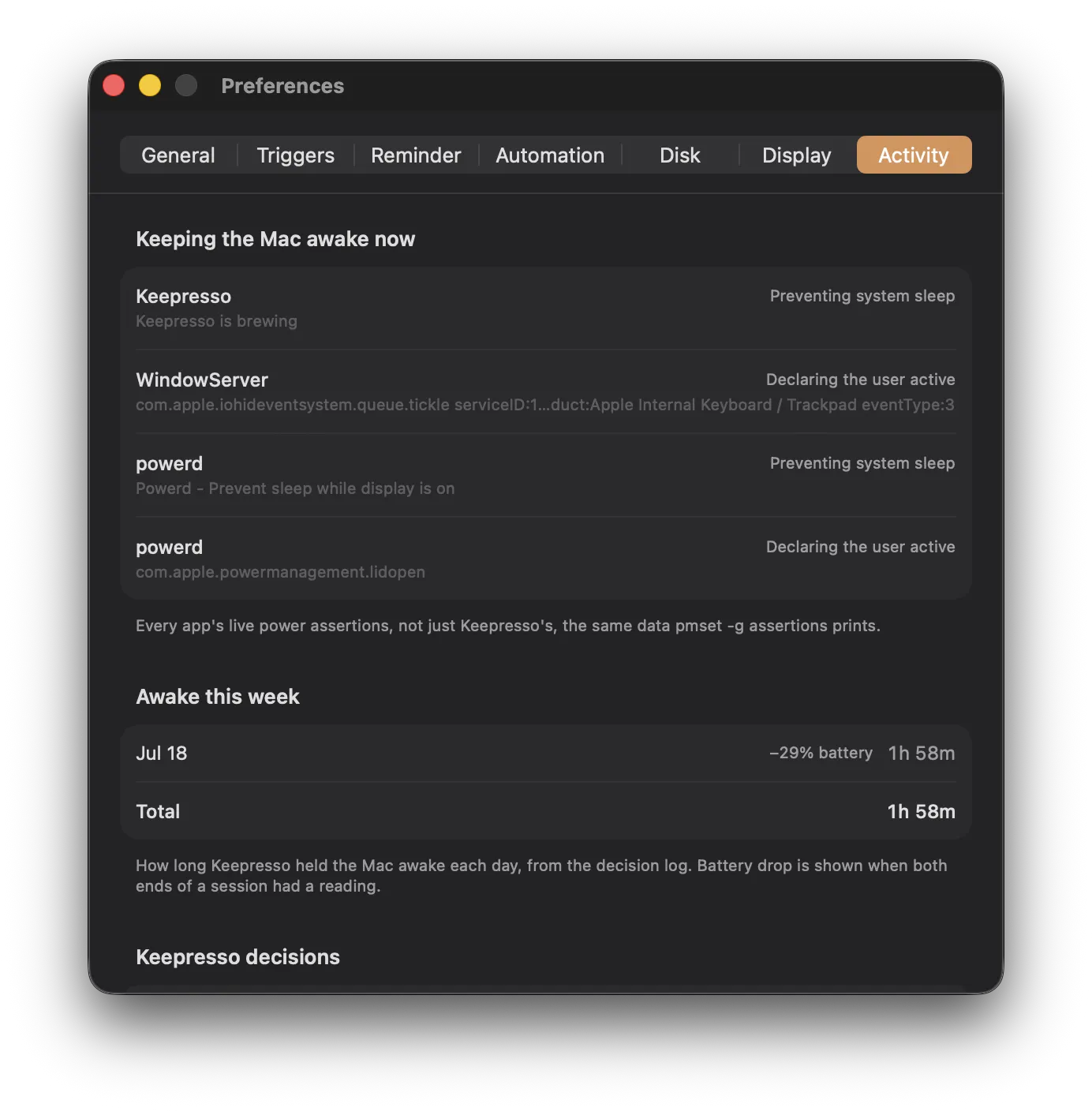
Activity answers the question every keep-awake app eventually gets asked: why is my Mac awake right now? It lists every app's live power assertions, the readable version of pmset -g assertions, so you can see exactly what is preventing sleep even when it is not Keepresso, plus a decision log of why each session started or stopped: which trigger fired, a timer expiring, a battery or thermal pause, or a manual or scripted command. The log is kept on disk now, so it survives a relaunch, and a simple seven-day summary shows how long Keepresso held the Mac awake. When something other than Keepresso is holding the Mac up, the menu bar names the app doing it, so you do not have to open Preferences to find the culprit.
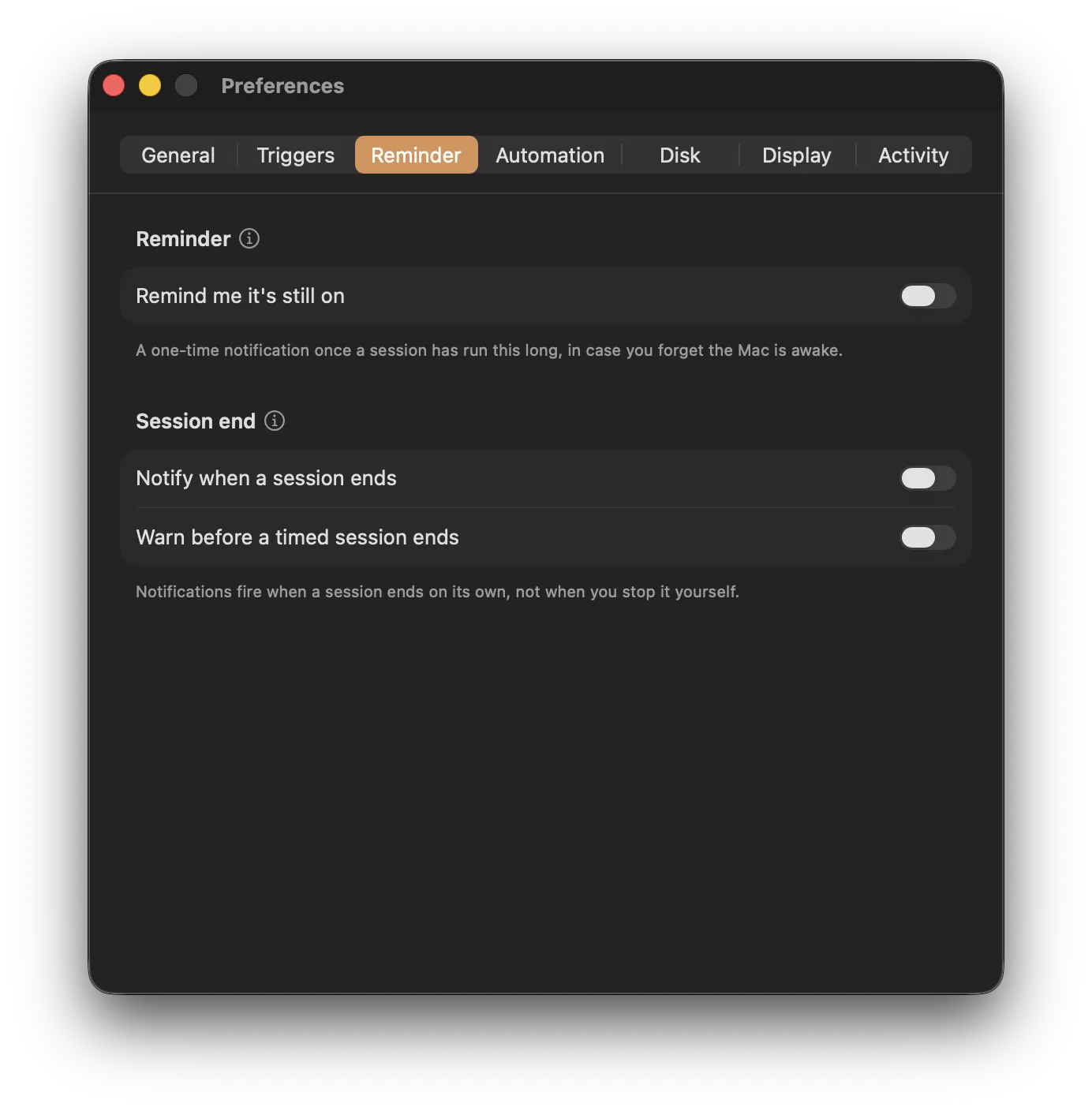
Reminder is the safety net for indefinite sessions: a one-time or recurring notification once a session has run a set length, with an optional sound, in case you forget the Mac is awake, plus a heads-up a few minutes before a timed session ends. The end-of-session actions themselves live on the Automation tab, next to the event hooks.
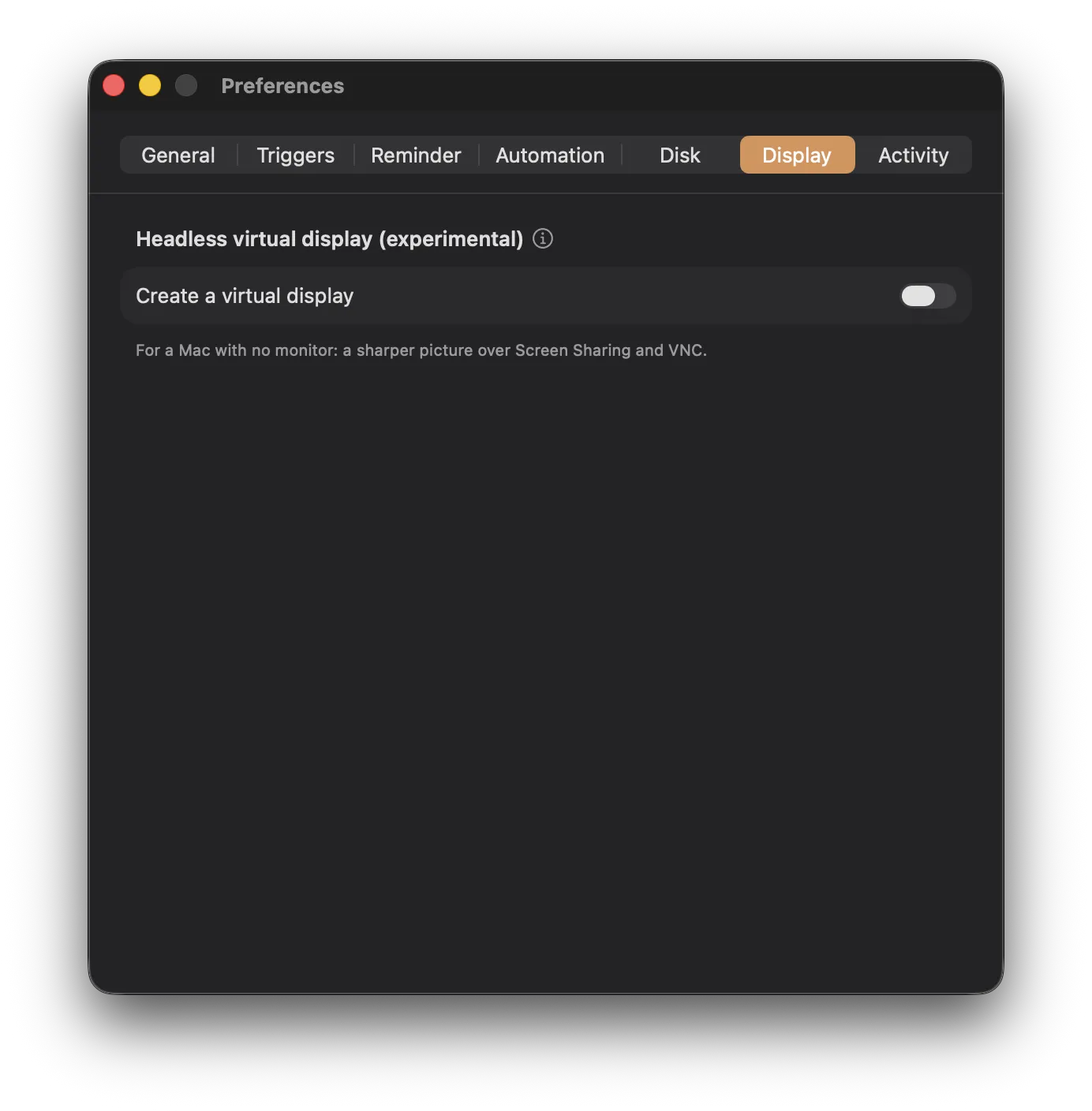
Display holds the experimental headless virtual display, which spins up a higher-resolution virtual screen so Screen Sharing and VNC look crisp on a Mac with no monitor. It leans on a private macOS API, so a hardware HDMI dummy plug is the no-software alternative. (A Disk tab handles the keep-alive for external drives.)
Driving it from a script
Keepresso shows up in the Shortcuts app with first-class actions, Start Keeping Awake (optionally for N minutes), Stop Keeping Awake, and Toggle Keep Awake, which also makes them one Spotlight or Siri invocation away. It also registers a keepresso:// URL scheme, so Raycast, Alfred, or a shell script can start or stop a session without touching the menu bar at all:
open "keepresso://start"              # indefinite session
open "keepresso://start?duration=60"  # timed session, in minutes
open "keepresso://start?until=18:00"  # run until a wall-clock time
open "keepresso://stop"
open "keepresso://toggle"
Both the actions and the URL commands pause triggers first, the same temporary pause as the menu button, so a script's command sticks instead of being overridden by the trigger engine a second later. Pair that with the battery auto-pause setting, a charge threshold below which Keepresso force-stops the session and holds off reactivating, and a laptop running on triggers alone will not run itself flat while you are not watching. Timed sessions also get an optional live countdown next to the cup icon, so you can see how long is left without opening the menu.
For the terminal, a shell script, a Makefile, or a CI job, there is also a proper keepresso command-line tool. Homebrew puts it on your PATH automatically; on a DMG install the privileged helper creates the /usr/local/bin/keepresso link for you and re-heals it after the app moves or updates, so it just works either way. It is the scriptable twin of the menu, so a long job can wake the Mac when it starts and let it sleep when it finishes:
keepresso start                 # open-ended session
keepresso start --for 90        # a 90 minute session
keepresso start --until 18:00   # run until a wall-clock time
keepresso stop
keepresso status                # exit code: awake, asleep, or app not running
For agents and long jobs that should not leave the Mac pinned if they die mid-run, leases are the better fit. Acquire one with a TTL, heartbeat while work continues, release when done; if the process crashes the lease expires on its own:
ID=$(uuidgen)
keepresso lease acquire --id "$ID" --tool render --task "overnight export" --ttl 600
# ... long work, with periodic: keepresso lease heartbeat --id "$ID"
keepresso lease release --id "$ID"
keepresso lease list                # live leases and countdowns
keepresso wake status               # read the system wake schedule
Or it can hold the Mac awake on its own, exactly like caffeinate, with the assertion tied to the life of a process or a shell so the machine is free to sleep the moment it exits:
keepresso -i            # hold until Ctrl-C
keepresso -t 3600       # hold for N seconds
keepresso -w $$ &       # stay awake as long as this shell lives
Either way the hold is a real macOS power assertion, so it shows up in pmset -g assertions and in the Activity pane like everything else. Agents that speak MCP can skip the shell and talk to the bundled server directly (leases, status, optional wake schedule). Point MCP config at:
/Applications/Keepresso.app/Contents/Helpers/keepresso-mcp
The ready-to-copy skill lives under Preferences ▸ Automation (and in the app at Contents/Resources/AgentSkill/keep-awake).
Why not just use caffeinate
The built-in caffeinate command works, and tools like Amphetamine, Caffeine, and KeepingYouAwake have covered this ground for years. Keepresso's angle is doing it the native, honest way: real IOPMAssertion power assertions instead of synthetic mouse jiggles, with conditions so you are not toggling it by hand all day, and a lease/MCP path so agents can hold the Mac awake without leaving it pinned forever.
That choice has one consequence worth knowing: the power assertion APIs are blocked by the App Sandbox, which is why Keepresso ships outside the Mac App Store as a signed, notarized DMG rather than through the store.
How it is built
Under the hood it is split in two: KeepressoCore, a Swift Package Manager library that holds the state machine and unit tests, and a thin SwiftUI MenuBarExtra app on top. The controller talks to the system through protocol seams, so the logic is testable without needing real hardware to flip. It is a small, focused codebase, and I kept it that way on purpose.
If you keep your Mac awake for downloads, builds, servers, agents, or media, give it a run and tell me what is missing.
Keepresso Free and open source, with screenshots and the full feature list at keepresso.com. Get it